Press the power button, the little LED glows, maybe the fan twitches — and nothing. A laptop that won’t turn on but the light is on is actually good news in disguise: power is reaching the machine, so this is usually a fixable problem rather than a dead motherboard. Work through these steps in order, from easiest to most involved.
Laptop won’t turn on but the light is on? Step 1: the hard reset
- Unplug the charger and remove the battery if it’s removable.
- Hold the power button down for a full 30 seconds. This drains residual charge (“flea power”) that can leave the machine in a stuck state.
- Reconnect only the charger (leave the battery out if removable) and try powering on.
This sounds too simple, but it resolves a huge percentage of no-boot-with-lights cases. Static buildup and stuck power states are genuinely common.
Step 2: Check the display, not the laptop
Sometimes the laptop is actually booting — you just can’t see it. Shine a flashlight at the screen at an angle: if you see a faint image, the backlight or inverter failed, not the whole machine. Or connect to an external monitor/TV via HDMI: if that displays, your laptop’s screen or display cable is the problem — annoying, but the computer itself is fine and your data is safe.
Step 3: Try a different charger
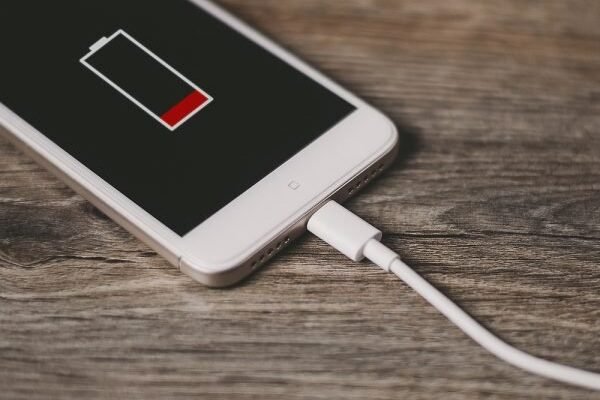
The light being on doesn’t mean the charger is delivering enough power. A failing adapter can light the LED while starving the system. Borrow an identical charger (same wattage — check the brick’s label) and test. Also inspect your charger’s cable for fraying and the charging port for lint or bent pins. USB-C laptops are picky: a phone charger won’t cut it; you need the full rated wattage.
Step 4: Disconnect everything
Unplug all USB devices, SD cards, docks, and external drives. A shorted USB device or a bootable drive confusing the boot order can halt startup with lights on. Try booting with absolutely nothing attached — you’d be surprised how often a forgotten USB stick is the culprit.
Step 5: Listen and look for beep codes / blink patterns
Many laptops communicate hardware failures through beeps or blinking LEDs. Three beeps on a Dell, for instance, typically means RAM failure; HP uses blinking caps-lock codes. Look up your manufacturer’s beep/blink codes — they’re telling you exactly which component failed, which saves a lot of guessing.
Step 6: Reseat the RAM
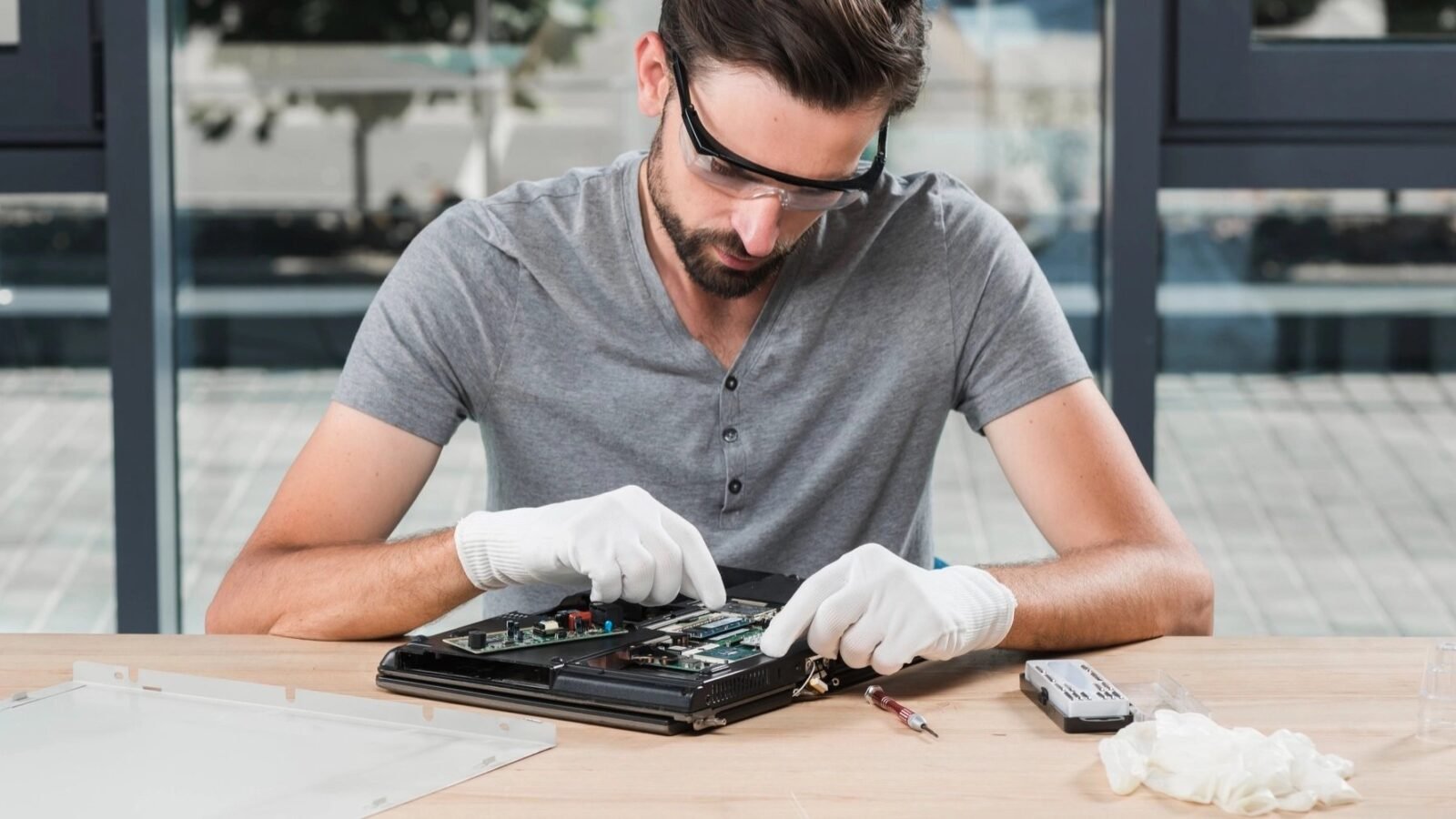
Loose or corroded RAM is a top cause of power-but-no-boot. If you’re comfortable opening the bottom panel (usually a few screws):
- Unplug power and remove the battery if possible.
- Locate the RAM sticks, release the clips, and remove them.
- Clean the gold contacts gently with a pencil eraser, blow out the slots.
- Reinsert firmly until the clips snap, and try booting with one stick at a time if there are two.
If the laptop boots with one stick but not the other, you’ve found a dead RAM module — a $25–$50 replacement, not a new laptop. iFixit’s free repair guides have model-specific RAM replacement walkthroughs with photos.
Step 7: Reset the CMOS / BIOS
A corrupted BIOS setting can prevent booting. On many laptops, holding the power button for 30 seconds (Step 1) also resets this. Some have a dedicated reset pinhole on the bottom. Others require disconnecting the small CMOS battery inside — a 5-minute job if you’re already in there for the RAM. Check your model’s manual for the exact procedure.
Step 8: Know when it’s a pro job
If none of this works, you’re likely looking at motherboard, CPU, or GPU failure — board-level repair territory. Before paying for that, consider: a shop diagnosis usually runs $50–$100 (often credited toward repair). And critically — your data is probably fine. The SSD/HDD can almost always be removed and read via a $15 USB enclosure, even from a dead laptop. If you had backups (see our guide to backing up your computer to an external hard drive), this is a hardware annoyance, not a data disaster.
Preventing the next no-boot scare
- Shut down properly instead of always hibernating — it clears stuck states.
- Keep the BIOS/firmware updated; manufacturers fix boot bugs regularly.
- Don’t ignore a fan screaming under light loads — chronic overheating kills components over time.
- Use a surge protector. Power spikes are a quiet motherboard killer.
What a repair shop will actually do
If you hand this to a pro, here’s the honest breakdown: diagnosis ($50–$100, often applied to the repair) involves testing with known-good RAM, charger, and display, then board-level checks. Common outcomes: dead RAM stick ($25–$50 part + labor), failed DC jack ($80–$150), or motherboard failure ($200–$400+). Get the diagnosis in writing and do the math — if repair costs more than half the laptop’s current value, put the money toward a replacement and just pay for data recovery ($50–$100 to pull files off the old drive). Always ask for your old drive back regardless; it contains your data and shouldn’t leave the shop with your files on it.
The bottom line
When your laptop won’t turn on but the light is on, start with the 30-second hard reset, then check whether it’s actually a display problem, test another charger, and reseat the RAM. Those four steps resolve the majority of cases. And whatever happens, remember your files are almost certainly recoverable — pull the drive before you panic.