You open Chrome, and your laptop sounds like it’s preparing for takeoff. When your computer fan runs so loud the moment you open your browser, it’s not a coincidence — modern browsers are among the most demanding programs on your computer. Here’s why it happens and how to get the roar under control.
Why your computer fan runs so loud when you open your browser
Browsers aren’t the lightweight document viewers they were in 2010. A modern browser is essentially an operating system: each tab runs as a separate process, sites run JavaScript constantly, videos decode in real time, and extensions pile on top. Open 20 tabs with a few auto-playing videos and you’re asking the CPU for sustained heavy work — heat goes up, and the fan is just doing its job: preventing your processor from cooking itself.
Cause 1: Too many tabs (the usual suspect)
Each tab consumes RAM and CPU, even “idle” ones — background tabs run timers, ads refresh, and web apps poll for updates. Check your browser’s task manager (Chrome/Edge: Shift+Esc; it shows per-tab CPU and memory) and prepare to be horrified. The fix:
- Close tabs you’re not using. Bookmark them instead — that’s what bookmarks are for.
- Use a tab suspender extension (like The Great Suspender’s reputable successors) that parks idle tabs.
- Enable your browser’s memory saver / sleeping tabs feature (Chrome: Settings → Performance → Memory Saver; Edge has Sleeping Tabs). This alone quiets many machines.
Cause 2: Rogue extensions
Extensions run on every page you visit, and badly written ones burn CPU constantly. Ad blockers are usually fine (they reduce load by blocking ads), but coupon finders, “shopping assistants,” crypto wallet extensions, and sketchy toolbars are notorious resource hogs. Test: open the browser in incognito/private mode (which disables extensions) — if the fan stays quiet, an extension is your culprit. Disable them one by one to find it.
Cause 3: Video and auto-play content
Video decoding is CPU/GPU-intensive, especially at 4K or with multiple streams. Auto-playing videos, animated ads, and background video headers all contribute. Make sure hardware acceleration is enabled (Chrome: Settings → System → Use hardware acceleration when available) so video decoding uses the efficient GPU path instead of the CPU. And an ad blocker meaningfully reduces the junk your browser has to process.
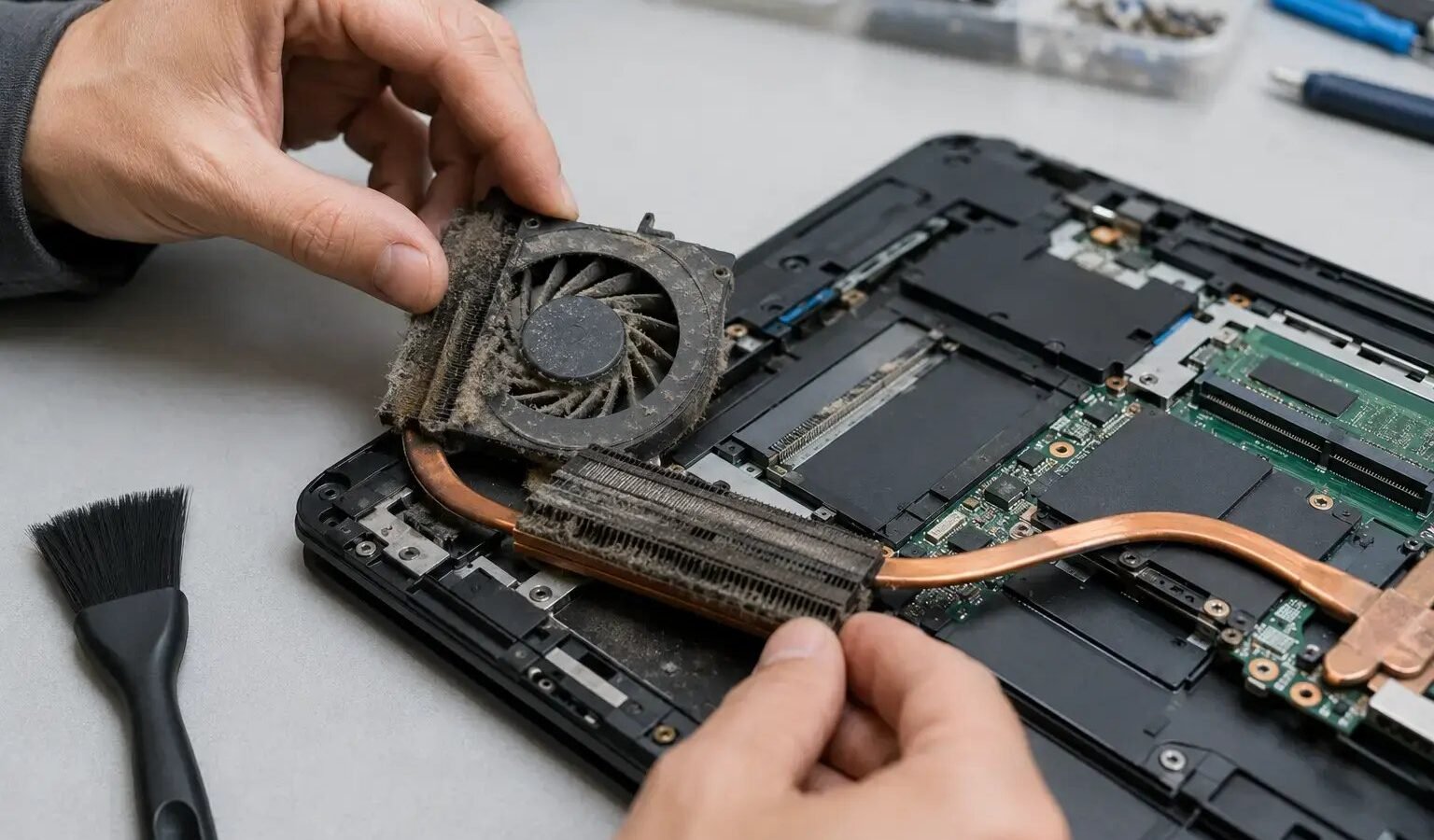
Cause 4: Dust and blocked vents (the physical side)
If the fan screams during light browsing — two tabs, no video — the cooling system itself may be compromised. Dust-clogged vents and dried-out thermal paste force the fan to work harder for the same cooling. Symptoms: the laptop is hot to the touch, the fan runs even at idle, performance throttles. Fixes:
- Blow out vents with compressed air (short bursts, fan held still).
- Use the laptop on a hard flat surface — beds and couches smother intake vents.
- Prop up the rear slightly for airflow; a $20 cooling pad helps older machines.
- For desktops, open the case yearly and clean the fans and heatsinks.
Cause 5: Malware or crypto miners
If the fan ramps up with the browser open but no heavy tabs, check for malicious extensions or “cryptojacking” scripts mining cryptocurrency in a hidden tab. Run a scan with a reputable free antivirus, review installed extensions ruthlessly, and check the browser task manager for tabs or workers consuming CPU that you don’t recognize.
Cause 6: An aging machine struggling with the modern web
Sometimes the honest answer is hardware age. A 7-year-old laptop with 4 GB of RAM will struggle with today’s web no matter what you do. If you’ve cleaned, updated, and trimmed and it’s still screaming, the machine may be telling you something. Our guide to speeding up an old Windows laptop squeezes out the last drops — and our budget laptop picks under $500 show how far a little money goes when it’s truly time.
For deeper Windows-specific tuning, Microsoft’s support pages document the built-in performance troubleshooting tools.
Quick quiet-down checklist
- Enable Memory Saver / Sleeping Tabs.
- Test in incognito to identify bad extensions; remove the offenders.
- Turn on hardware acceleration.
- Install a reputable ad blocker.
- Clean the vents; use hard surfaces.
- Close the 47 tabs. You know the ones.
Fan curves and quiet modes
Most laptops let you trade cooling aggressiveness for quiet. In Windows, Settings → System → Power & battery → Power mode set to Best power efficiency lowers the CPU’s heat output, which keeps the fan calmer during browsing — at the cost of some speed you’ll never notice in Chrome. Many manufacturers (Lenovo, ASUS, Dell) also include a “Quiet” thermal mode in their companion app that caps fan speed directly. Gamers will hate it, but for writing and browsing it’s transformative. Just don’t use quiet mode to mask a real problem: if the machine is genuinely overheating, throttling the fan treats the noise while the heat keeps damaging components.
The bottom line
When your computer fan runs so loud as soon as you open your browser, the cause is usually tab overload, a rogue extension, or dust-choked cooling — sometimes all three. Enable sleeping tabs, audit extensions in incognito mode, and clean the vents. The fan is a symptom, not the disease: quiet the workload or fix the cooling, and the roar goes away.